Struggling to get your printer to produce vibrant color documents? You’re not alone. Color printing remains one of the most common printer pain points, with users constantly searching for solutions to make their documents pop. Whether you’re trying to print photos, presentations, or colorful charts, understanding how to properly configure color printing across all your devices is essential in 2026.
This comprehensive guide covers everything you need to know about printing in color across Windows, Mac, and mobile platforms. I’ll walk you through step-by-step instructions, troubleshooting tips, and optimization techniques that will help you achieve professional-looking color output every time.
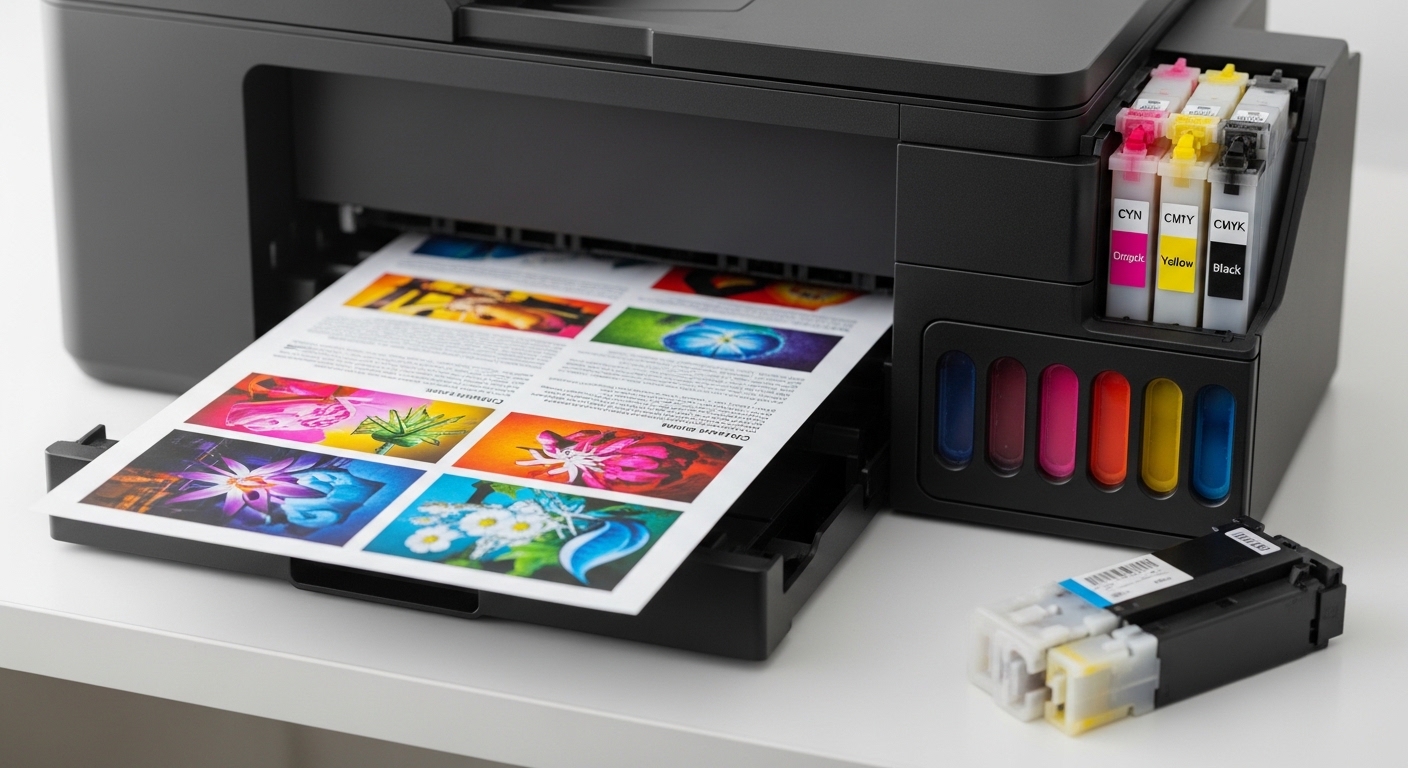
Color printing technology has evolved significantly, but the basic principles remain consistent. Your printer uses a combination of Cyan, Magenta, Yellow, and Black (CMYK) inks to create the full spectrum of colors you see on your screen. Understanding this process is the first step toward mastering color printing.
Before diving into platform-specific instructions, let’s cover the universal checks that apply regardless of your device or operating system. These foundational steps will save you time and frustration when troubleshooting color printing issues.
Understanding Color Printing Basics
Color printing relies on the CMYK color model, which combines four ink colors to produce millions of possible shades. Your printer precisely mixes Cyan, Magenta, Yellow, and Key (Black) in varying amounts to reproduce the colors from your digital documents. This differs fundamentally from how screens display colors using RGB (Red, Green, Blue) light.
The first verification step is confirming your printer actually supports color printing. While this seems obvious, many office environments have monochrome printers that physically cannot produce color output. Check your printer’s model specifications or inspect the ink compartment – if you see slots for multiple color cartridges or a tri-color cartridge alongside a black cartridge, you have a color-capable device. If you’re in the market for an upgrade, consider these wireless printers under $100 that offer excellent color printing capabilities.
Ink levels represent another critical factor. Even if all cartridges contain some ink, significantly low levels in any single color can cause your printer to default to grayscale or produce poor quality output. Most modern printers include utility software that displays real-time ink levels – familiarize yourself with accessing this information regardless of your platform.
The connection between your device and printer also affects color printing. Wireless connections should be stable, and USB connections should be secure. Loose connections can interrupt color data transmission, resulting in unexpected black and white output or color banding issues.
Driver installation quality directly impacts color functionality. Generic or universal drivers often lack color options, preventing you from accessing your printer’s full color capabilities. Always use manufacturer-specific drivers downloaded from the official manufacturer website rather than relying on operating system defaults.
How to Print in Color on Windows?
Windows 11 Color Printing Setup
Windows 11 introduces a streamlined printing interface, but color settings are often hidden behind multiple menu layers. To access color options in Windows 11, open your document and press Ctrl+P to open the print dialog. The interface varies by application, but you’ll typically see a printer selection dropdown and a “More settings” option.
Click “More settings” to reveal expanded options. Look for “Color” or “Color mode” dropdown menus. You should see options for “Color,” “Grayscale,” or “Black and white.” Select “Color” to enable color output. Some printers offer additional color modes like “Automatic” (printer decides) or “Color/Grayscale Auto-Detect” (prints color pages in color, text in black and white).
For system-wide color defaults on Windows 11, navigate to Settings > Bluetooth & devices > Printers & scanners. Select your printer from the list and click “Manage.” Choose “Printing preferences” to access default settings. Set your preferred color mode here to apply to all print jobs unless individual applications override these settings.
Windows 11 also allows per-application color preferences. Microsoft Office applications, for example, integrate color settings into the print dialog differently than web browsers. In Office apps, look for “Printer Properties” after pressing Ctrl+P to access detailed color options specific to that print job.
Windows 10 Color Printing Configuration
Windows 10 follows similar principles with interface differences unique to that version. Access printer settings through Settings > Devices > Printers & scanners. Select your printer and click “Manage,” then “Printing preferences.” The color options typically reside under tabs labeled “Paper/Quality,” “Features,” or a dedicated “Color” tab.
Windows 10 offers user-specific default preferences, particularly useful for shared computers. Access this through Control Panel > Hardware and Sound > Devices and Printers. Right-click your printer, select “Printer properties,” navigate to the “Advanced” tab, and click “Printing Defaults.” Each Windows user account can maintain different default color settings.
The classic Control Panel interface in Windows 10 provides access to advanced color management options not available in the Settings app. Here you can configure color profiles, adjust color correction settings, and enable or disable color management features that affect output quality.
Windows 10 also supports printing shortcuts that can include color settings. Create custom shortcuts for frequently used color printing configurations by accessing printer preferences and saving presets. These shortcuts appear in application print dialogs for quick access to your preferred color settings.
Application-Specific Color Settings in Windows
Different Windows applications handle color printing uniquely, requiring individualized approaches for optimal results. Microsoft Word, Excel, and PowerPoint all integrate color settings through their print dialogs, but the exact location varies slightly between applications.
In Microsoft Word, press Ctrl+P and click “Printer Properties” to access color options. Word respects printer driver settings for most color decisions, but you can also adjust document-specific color settings through Page Setup. For documents with background colors, ensure “Print background colors and images” is enabled in File > Options > Display.
Excel requires special attention for color printing. Charts and colored cells print accurately only when grayscale options are disabled. Access Page Layout > Page Setup > Sheet tab and uncheck “Black and white.” For workbooks with colored cell backgrounds, verify “Print background colors and images” is enabled in Excel Options > Advanced > Printing options.
PowerPoint presentations often include dark backgrounds that consume excessive ink. Use Print Layout options to print slides with white backgrounds while preserving color for important graphics. The “Print slides with a white background” option significantly reduces ink usage while maintaining color where it matters most.
Adobe applications like Acrobat Reader offer advanced color management options. In the print dialog, click “Advanced” to access color management settings. Choose between letting Acrobat manage colors or letting the printer handle them. For most accurate color reproduction, select ” Acrobat Color Management” and choose the appropriate color profile for your printer and paper combination.
How to Print in Color on Mac?
macOS Ventura and Sonoma Color Printing
Mac computers provide a unified printing interface across all applications, making color settings consistently accessible. When you press Command+P to print, the basic print dialog appears with limited options. Click “Show Details” at the bottom to expand the full settings panel where color options reside.
The expanded print dialog reveals a dropdown menu that defaults to “Layout” or “Presets.” Change this dropdown to “Quality & Media,” “Color Options,” or “Color Management” depending on your printer model. Here you’ll find the fundamental color/monochrome selection – choose “Color” instead of “Black & White” or “Grayscale.”
Mac printer dialogs often include additional color controls beyond the basic color/monochrome choice. You might see color mode options like “Vivid” for saturated colors, “Natural” for accurate color reproduction, or “Custom” for manual color adjustments. These options significantly affect output appearance, especially for photos and graphics.
Set system-wide color defaults on Mac through System Settings > Printers & Scanners. Select your printer and click “Options & Supplies” or “Options & Supplies.” Navigate to the “Driver” or “Options” tab to configure default color preferences that apply to all applications unless specifically overridden.
The Presets feature in Mac print dialogs allows saving custom color configurations. Create presets for different color printing needs – one for photos, another for documents, a third for drafts. These presets appear in every application’s print dialog, providing quick access to your preferred color settings.
Color Management on Mac
Macs excel at color management through ColorSync technology, which ensures consistent color reproduction across different devices and applications. In the expanded print dialog, select “Color Matching” from the dropdown menu to access color management options.
Choose between “ColorSync” (lets macOS handle color) or “Vendor Matching” (lets the printer handle color). For most users, especially those printing photos or graphics created on their Mac, ColorSync provides superior results. ColorSync uses ICC profiles to translate colors accurately from screen to print.
The Preview application on Mac offers exceptional color printing control. Open your document in Preview, press Command+P, and use the preview window to see exactly how colors will appear on paper. You can adjust color profiles by selecting different options in the Color Matching section, particularly useful for photo printing where color accuracy matters most.
ColorSync Utility, located in Applications > Utilities, provides advanced color management capabilities. Use this utility to install custom ICC profiles, calibrate displays, and troubleshoot color reproduction issues. While most users won’t need these advanced features, they’re invaluable for color-critical work like photography or graphic design.
Mac also supports printer-specific color profiles downloaded from paper manufacturers or printer manufacturers. Install these profiles through System Settings > Printers & Scanners > your printer > Options & Supplies > Driver. Access installed profiles when printing by selecting Color Matching > ColorSync > Profile in the print dialog.
Mobile Device Color Printing
Printing in Color from iPhone and iPad
iOS devices use AirPrint for wireless printing to compatible printers without requiring additional software. To print in color from your iPhone or iPad, open the document or photo you want to print. Tap the Share button (square with arrow pointing up) and select “Print” from the action menu.
Choose your AirPrint-enabled printer from the available devices list. Once selected, tap “Options” if available – not all printers display color options through AirPrint. Many default to automatic color detection, printing color documents in color and text documents in black and white. If you see color options, ensure “Color” is selected rather than “Black & White” or “Grayscale.”
AirPrint provides limited color controls, so many iPhone and iPad users prefer manufacturer-specific apps for detailed color management. HP Smart, Canon PRINT, Epson iPrint, and Brother iPrint&Scan apps offer comprehensive printing controls including quality settings, paper type selection, and color adjustment options unavailable through AirPrint.
For users with portable printers or travel printers, manufacturer apps often provide the only way to access color settings. These apps typically offer more intuitive interfaces designed specifically for mobile use, with easy access to color mode selection, paper type matching, and print quality adjustments.
iOS 15 and later versions support printing directly from the Files app for PDFs and documents. When printing from Files, tap the preview to access printer options, including color settings. This unified printing interface works consistently across document types, making it easier to ensure color output regardless of file format.
Android Color Printing Setup
Android devices offer multiple printing methods depending on your version and printer compatibility. Modern Android versions include built-in printing support that works with many network-connected printers. Access printing services through Settings > Connected devices > Connection preferences > Printing, where you can add and configure printers.
To print in color from Android, open your document or photo and tap the menu button (three dots), then select “Print.” Choose your printer from the list and tap the down arrow or gear icon to reveal more options. Look for “Color” or “Color mode” in the expanded options – tap it to switch between Color and Black & White. The exact location varies by Android version and printer manufacturer.
Many Android users achieve better results using manufacturer-specific apps rather than the built-in printing service. These apps typically provide more color options, including quality settings that affect color vibrancy. Samsung Mobile Print, HP Smart, Canon PRINT, and similar applications offer interfaces optimized for mobile devices with easy access to all color controls.
Chrome browser on Android offers additional printing options not available in other applications. When printing from Chrome, look for the “Destination” setting and ensure your correct printer is selected. Click “More settings” to access color options, including the ability to print background colors and images that are normally disabled by default to save ink.
Android 12 and later versions include improved printer discovery and configuration. Many modern printers are automatically detected on the same network, requiring minimal setup. However, automatic configuration sometimes defaults to black and white, so always verify color settings are properly enabled before printing important documents.
How to Print in Color on Chromebook?
Chromebooks now rely on native Chrome OS printing for color output. Google Cloud Print was officially discontinued in 2020, so Chromebook users must use modern printing methods. The native printing system in Chrome OS has improved significantly and now provides robust color printing capabilities.
To set up color printing on Chromebook, ensure your printer is on the same network. Click the status area in the bottom-right corner, select Settings (gear icon), then navigate to Advanced > Printing > Printers. Click “Add Printer” to discover available printers on your network. Most modern printers are automatically detected and configured.
Once connected, open the document or web page you want to print and press Ctrl+P. The Chrome OS print dialog appears, showing a preview of your document. Click “More settings” to reveal color options. Look for the “Color” dropdown menu – ensure it’s set to “Color” rather than “Black and white” or “B&W.”
Chromebook printing defaults to automatic color detection on many printer models. This means the printer decides whether to use color based on the document content. While convenient, this sometimes produces unexpected results. For consistent color output, manually select “Color” rather than relying on automatic detection.
Some Chromebook users encounter limited color options through the native print dialog. In these cases, access your printer’s web interface for full color controls. Find your printer’s IP address through Settings > Printing > Printers > your printer > Printer info. Type this IP address into Chrome’s address bar to access the built-in web server with comprehensive printing options.
For Chromebooks that can’t detect your printer automatically, you may need to use the manufacturer’s cloud printing service or app. Many printer manufacturers offer Chrome OS-compatible apps or web services that provide full color printing capabilities. HP, Canon, Epson, and Brother all maintain Chrome OS support for their modern printers.
Brand-Specific Printer Instructions
HP Printer Color Settings
HP printers offer color settings in multiple locations depending on the model. For most HP inkjet printers, access color options through the HP Smart app or the printer’s embedded web server. HP printers typically default to color output when all cartridges contain ink, but various settings can force grayscale mode.
On Windows, HP printer color settings are accessed through Printing Preferences. Right-click your HP printer in Devices and Printers, select “Printing preferences,” and look for the “Color” tab. Here you’ll find options for “Print in grayscale” – ensure this is unchecked. Some HP models include “Black ink only” or “Use black cartridge only” options that override color printing.
HP LaserJet printers use different color terminology. Access color settings through the printer’s control panel or embedded web server. Look for “Color Mode” or “Color/Monochrome” settings. HP color laser printers offer various color modes including “Automatic,” “Color,” and “Grayscale.” For vibrant color output, select “Color” and choose “Best” or “High” quality settings.
HP printers include a feature called “HP Easy Color” that automatically optimizes color settings based on document type. While helpful for many users, this feature sometimes produces unexpected results. Disable HP Easy Color in printer preferences if you want manual control over color settings. After disabling, access individual color controls for precise adjustment.
If you’re experiencing persistent color issues with your HP printer, researching current HP printer models might reveal whether newer options offer improved color handling. HP frequently updates printer firmware to address color printing issues, so also check for available updates through HP Support Assistant.
Canon Printer Color Settings
Canon printers provide color settings through the Canon printer driver utility and Canon’s proprietary software. For Canon PIXMA and MAXIFY models, access color options through “Printing Preferences” on Windows or “Printers & Scanners” on Mac. Look for tabs labeled “Color Options,” “Color Adjustment,” or “Color/Intensity.”
Canon printers include color intensity and color correction settings that significantly affect output. In the Color Options tab, you’ll find sliders or dropdowns for color intensity, brightness, and contrast. Adjust these settings to achieve desired color output. The “Color Mode” typically offers “Color,” “Grayscale,” and sometimes “Photo” options optimized for different content types.
Canon’s “Color Correction” feature automatically adjusts colors for optimal reproduction. While generally helpful, this feature can sometimes produce unexpected results. Disable automatic color correction if you prefer manual control or if colors don’t match your screen. After disabling, you can manually adjust cyan, magenta, and yellow intensity to achieve precise color matching.
For photo printing, Canon printers offer specialized color modes. In the printer driver, look for “Photo Color” or “Photo Optimizer” options. These modes enhance color reproduction for photographic images, producing more vibrant and accurate colors compared to standard document printing modes.
Canon imageCLASS and laser printers use different color terminology. Access color settings through the printer’s control panel or remote printer driver. Look for “Color Mode” settings with options for “Auto (Color/Mono),” “Full Color,” and “Grayscale.” Select “Full Color” for consistent color output regardless of document content.
Epson Printer Color Settings
Epson printers feature comprehensive color controls through the Epson printer driver and Epson Status Monitor. Access color settings on Windows through Printing Preferences or on Mac through Printers & Scanners. Epson organizes color options under various tabs depending on the model.
Epson’s “Color Mode” dropdown typically offers “Color,” “Black and White,” and sometimes “Grayscale” options. Select “Color” to enable color output. Some Epson models include “Photo” modes that enhance color reproduction for photographs. The “Color Management” section allows choosing between automatic color adjustment and manual controls using ICC profiles.
Epson includes “Color Enhancement” features that automatically optimize colors for different content types. While helpful for many users, these enhancements can sometimes oversaturate colors. Disable automatic enhancements in the Color Settings tab if you prefer accurate color reproduction rather than enhanced output.
Epson EcoTank printers require special attention to color settings due to their unique ink system. These high-capacity inkjet printers include color density settings that affect color vibrancy. Access these through the “Maintenance” tab in the printer driver. Adjust color density if colors appear too light or too dark.
Epson WorkForce and Professional series printers offer advanced color controls for business users. Access these through the “Professional Mode” in the printer driver. Here you’ll find detailed color adjustment options including individual color channel controls, saturation settings, and gamma correction for precise color matching.
Brother Printer Color Settings
Brother printers configure color settings through the Brother printer driver or Brother Control Center. For Brother inkjet models, access color options through “Printing Preferences” on Windows or “Printers & Scanners” on Mac. Look for tabs labeled “Color,” “Color Adjust,” or “Advanced Color.”
Brother’s color interface typically includes a “Color Mode” dropdown with options for “Full Color,” “Color,” “Grayscale,” and “Black and White.” Select “Full Color” or “Color” to enable color output. The “Color Enhance” feature automatically adjusts colors for optimal appearance – disable this if you prefer manual color control.
Brother printers include “Color Adjust” settings that allow manual color correction. Access these options to adjust brightness, contrast, and individual color intensity. These advanced controls help achieve accurate color reproduction when automatic settings don’t produce desired results.
Brother laser printers use “Color Mode” settings accessible through the printer’s control panel or web interface. Look for “Auto Color,” “Full Color,” and “Mono” options. “Auto Color” detects whether a document needs color, while “Full Color” forces color output regardless of content. Use “Full Color” when color settings seem inconsistent.
For business users with small office printers, Brother models often include color usage tracking and restriction settings. Access these through the web-based management interface to monitor color printing costs and implement color printing policies if needed.
Printing When Black Ink is Empty
One of the most frustrating color printing scenarios occurs when black ink runs out but color cartridges remain full. Many printers refuse to print anything when any cartridge is empty, even if you only need color output. However, several workarounds can help you print using only color ink.
Some printer models include an “ink backup mode” or “composite black” feature that uses color inks to create black. Check your printer’s manual or manufacturer support site to determine if your model supports this feature. If available, enable ink backup mode through printer preferences or the printer’s control panel menu.
For documents that don’t require true black, consider changing text color to dark blue or dark brown before printing. Select all text in your document and change the font color to a dark shade from your word processor’s color palette. The printer will use color ink to produce this dark text, bypassing the empty black cartridge.
Another workaround involves changing your printer’s color mode settings. In printer preferences, look for “Composite black” or “Use color cartridge for black” options. These settings force the printer to mix cyan, magenta, and yellow to create dark colors instead of using black ink. The resulting “black” may appear slightly brownish but remains readable for most documents.
Some printers allow you to physically bypass the empty black cartridge check. This printer-specific procedure involves accessing the printer’s service menu or holding specific buttons during startup. Search online for your exact printer model plus “override empty cartridge” to find model-specific instructions. Be aware this may affect print quality and could potentially damage your printer if not done correctly.
For urgent printing needs when black ink is unavailable, consider converting your document to grayscale and printing in grayscale mode using color ink. This approach works better for graphics than for text, as color ink reproduction of grayscale images often produces acceptable results while text may appear less crisp than true black ink.
Long-term solutions include investing in printers with individual ink cartridges or high-capacity ink systems. Specialized crafting printers and photo printers often include features designed to maximize ink efficiency and provide workarounds for empty cartridge situations.
Environmental Factors for Color Printing
Color printing quality depends on more than just settings and ink levels – environmental conditions significantly affect output. Temperature, humidity, and storage conditions all play crucial roles in maintaining consistent color reproduction and print quality.
Temperature affects both ink viscosity and paper behavior. Ideal printing temperature ranges between 65-75°F (18-24°C). In cold environments, ink becomes thicker and may not flow properly through printhead nozzles, resulting in missing colors or banding. Warm temperatures cause ink to thin, potentially leading to oversaturation and bleeding. Allow your printer and paper to acclimate to room temperature before printing important color documents.
Humidity levels dramatically impact color printing performance. High humidity causes paper to absorb moisture from the air, affecting how ink adheres and dries. Moist paper produces muddy colors with poor edge definition. Low humidity increases static electricity, potentially causing paper feed issues and affecting how ink jets onto the page. Maintain humidity between 40-60% for optimal color printing results.
Ink cartridges require proper storage to maintain color quality. Unopened cartridges should be stored in a cool, dry place away from direct sunlight and temperature fluctuations. UV light degrades ink color over time, while temperature extremes can separate ink components. Once installed, use cartridges within six months for best results – ink chemistry degrades over time even when properly stored.
Atmospheric pressure changes can affect color printing, particularly for printers at high altitudes. Lower air pressure affects how ink droplets form and travel from printhead to paper. If you’ve recently moved to a significantly different altitude, run printhead alignment and cleaning cycles to compensate for pressure differences.
Air quality impacts printhead performance and color output. Dust, smoke, and airborne particles can clog printhead nozzles and settle on paper, affecting color reproduction. In dusty environments, perform printhead cleaning more frequently and consider using air purifiers near your printing area. Smoking near printers significantly degrades color output over time.
Paper storage conditions affect color reproduction. Paper absorbs moisture and odors from its environment, which can interact with ink and alter colors. Store paper in its original packaging in a climate-controlled area. Avoid storing paper directly on concrete floors, which can transfer moisture to the paper stack.
Troubleshooting Color Printing Problems
Common Issues and Solutions
Color printing issues range from simple settings problems to hardware failures. Addressing these problems systematically saves time and frustration. The following common issues and solutions cover the most frequently encountered color printing problems.
Printer Only Prints in Black and White
This issue typically results from grayscale settings being enabled somewhere in the print chain. Check printer preferences for “Grayscale” or “Black ink only” options and ensure they’re unchecked. Verify the specific application’s print dialog doesn’t have grayscale selected – some applications override printer defaults. Also check your printer’s control panel for physical color/monochrome switches or menu settings that override software preferences.
Colors Look Wrong or Faded
Faded or incorrect colors usually indicate clogged printheads or low ink levels. Run your printer’s cleaning cycle through its utility software or control panel. You may need to run cleaning 2-3 times for heavily clogged nozzles. Also verify ink levels – some printers continue printing with low color ink but produce poor results. Replace any cartridges showing low levels.
Specific Colors Missing from Output
When specific colors don’t print (like no reds or no blues), you typically have an empty or clogged cartridge. Print a test page or nozzle check pattern through your printer’s utility software – this diagnostic shows which colors are functioning. Replace empty cartridges or run additional cleaning cycles for clogged ones. Some printers disable all color printing if any single color cartridge is empty.
Color Option Grayed Out or Unavailable
This problem usually indicates incorrect driver installation. Download the latest driver from your printer manufacturer’s website and perform a complete driver reinstall. Uninstall the existing driver first, restart your computer, then install the new driver. Generic or universal drivers often lack color options – always use manufacturer-specific drivers for full functionality.
Colors Don’t Match Screen Appearance
Screen-to-print color differences result from RGB to CMYK color space conversion. Screens use RGB light while printers use CMYK ink, and some RGB colors cannot be perfectly reproduced in CMYK. Use print preview when available to see expected output. For color-critical work, consider monitor calibration and printer color profiles to minimize discrepancies.
Color Banding or Streaks in Output
Banding appears as visible lines in color gradients and solid areas. This usually indicates misaligned printheads or partially clogged nozzles. Run printhead alignment through your printer’s utility software – this prints a test pattern and automatically adjusts head positioning. Follow alignment with a cleaning cycle to clear any remaining nozzle obstructions.
Advanced Troubleshooting Steps
When basic troubleshooting doesn’t resolve color printing issues, advanced diagnostic and repair steps may be necessary. These procedures require more technical knowledge but can resolve persistent color problems that resist simple solutions.
Reset your printer to factory settings to clear corrupted configurations. Factory resets eliminate problematic settings that may force black and white printing or cause color reproduction issues. The reset procedure varies by model – check your printer’s manual or manufacturer website for specific instructions. Be aware that factory resets erase all custom settings and wireless configurations.
Check for and install firmware updates for your printer. Manufacturers release firmware updates that fix bugs, improve color accuracy, and add new features. Access firmware updates through your printer’s built-in menu (if it has a display) or through the manufacturer’s software utility on your computer. Firmware updates often resolve color printing issues that drivers alone cannot fix.
On Windows, clear the print spooler to remove corrupted print jobs affecting color output. Open Services by typing services.msc in the Start menu search. Find “Print Spooler” in the list, right-click and select “Stop.” Navigate to C:\Windows\System32\spool\PRINTERS and delete all files. Return to Services and restart Print Spooler. This clears stuck print jobs that may be causing color problems.
Perform a deep cleaning cycle for stubborn printhead clogs. Basic cleaning cycles use minimal ink and may not resolve severe clogs. Access deep cleaning through your printer’s maintenance software – this procedure uses more ink but provides more thorough cleaning. Run deep cleaning 1-2 times, allowing the printer to rest for several hours between cycles if problems persist.
Check paper type and quality settings match your actual paper. Incorrect paper type settings cause the printer to apply incorrect ink amounts, affecting color reproduction. Ensure printer settings match your paper – photo paper, plain paper, glossy paper, and matte paper all require different ink application amounts. Using incorrect paper settings causes oversaturation, undersaturation, or poor color adhesion.
When to Use Color vs Black and White Printing?
Making Smart Printing Decisions
Color printing costs significantly more than black and white – typically 5-10 times more per page. Understanding when color adds value helps you make cost-effective printing decisions. Strategic color usage ensures you’re not wasting money on unnecessary color printing.
Use color printing for documents where color conveys essential information. Charts and graphs with color-coded data require color for accurate interpretation. Presentations with brand colors maintain consistency and professionalism. Educational materials with color-coded sections improve comprehension. Photos and images where color is essential lose impact without color. Marketing materials and flyers attract attention through color use. Creative projects or artwork depend on color for proper expression.
Stick with black and white for text-heavy documents where color adds no value. Internal drafts and reviews rarely need color. Basic forms and contracts typically print fine in monochrome. Books or long reports primarily containing text work well in black and white. Personal notes or reference materials generally don’t require color. Unless color serves a specific purpose, black and white printing saves substantial money without sacrificing functionality.
Consider audience and purpose when deciding on color printing. External documents typically benefit from color for professionalism and clarity. Internal communications usually work fine in black and white. Legal documents sometimes require color for specific elements like signatures or notations. Personal printing depends entirely on preference and budget.
Document lifespan should influence color decisions. Temporary documents that will be discarded quickly rarely justify color printing costs. Permanent records or reference materials may benefit from color coding. Archives and long-term storage documents should use color only when essential for future reference.
Hybrid Printing Strategies
Many modern printers offer automatic color detection – they analyze each page and print color pages in color while printing text-only pages in black and white. This intelligent approach works well for mixed documents but requires verification to ensure the printer correctly identifies color elements.
Automatic color detection sometimes produces unexpected results. Printers may classify pages with minimal color elements (like blue hyperlinks or small colored text) as color pages, using color ink unnecessarily. Conversely, they might miss subtle color elements that require color reproduction. Always preview documents when using automatic detection to verify correct classification.
Consider printing different sections of documents in different modes. In presentations, print the cover slide and key charts in color, but print text-heavy slides in black and white. Most applications allow specifying page ranges and color settings for different sections. This selective color usage saves money while highlighting important information.
Some applications support print styles or presets that automate hybrid printing. Create presets for “color pages only” that automatically print only pages containing color elements. Set up similar presets for “black and white” to quickly switch between modes. These presets streamline hybrid printing for frequently used document types.
For users with color laser printers, hybrid printing strategies work differently than inkjet. Laser printers typically have consistent costs per page regardless of color usage, making selective color printing less critical from a cost perspective. However, color laser toner cartridges still cost more than black, so hybrid strategies remain relevant for laser users.
Cost Optimization for Color Printing
Reducing Color Printing Costs
Color ink represents one of the highest per-unit costs in home and office printing. Implementing smart cost-reduction strategies maintains quality while significantly lowering printing expenses. These approaches help you get the most value from your color printing investment.
Use draft or economy mode for internal documents and test prints. These reduced-quality modes use significantly less ink while still providing readable color output. The quality is lower but perfectly acceptable for reviewing drafts, internal communications, and non-critical documents. Access these settings in printer preferences under quality or economy options.
Consider third-party or refilled cartridges for high-volume color printing. While manufacturer cartridges provide best quality and reliability, reputable third-party options cost 50-70% less. Research brands carefully and read user reviews – quality varies significantly between third-party manufacturers. Be aware that some printers detect non-genuine cartridges and may display warnings or refuse to print.
Print multiple pages per sheet when reviewing documents. Most printers support 2-up or 4-up printing, placing multiple pages on a single sheet. This works well for reviewing documents, creating handouts, or reducing paper usage for internal reference. Access this feature through layout options in your print dialog. While primarily a paper-saving measure, it also reduces ink usage proportionally.
Enable “black ink only” or “grayscale” modes for documents that don’t require true color. These modes use only the black cartridge, preserving expensive color cartridges for appropriate documents. Black cartridges typically offer higher page yields and lower cost per page than color cartridges.
Preview all documents before printing to catch errors that would waste ink and paper. The print preview shows exactly how your document will appear, including color reproduction. Catch layout errors, missing content, or incorrect colors before committing ink to paper. This simple step prevents costly reprints.
For users with high color printing needs, upgrading to a more efficient printer may provide long-term savings. Modern all-in-one printers often include features like high-capacity cartridges, duplex printing, and efficient ink usage that reduce operating costs compared to older models.
Ink Subscription Services
Many printer manufacturers offer ink subscription services that can reduce color printing costs for regular users. These programs calculate costs per page rather than per cartridge, often resulting in significant savings for moderate to heavy color printing users.
HP Instant Ink is perhaps the best-known subscription service. Plans start at a few dollars per month for a set number of pages, with unused pages rolling over for most tiers. The service automatically orders ink when levels run low and includes all color and black printing in the monthly allowance. For users who regularly print 50+ pages monthly, Instant Ink often provides better value than purchasing cartridges outright.
Canon PIXMA Print Plan and Epson ReadyPrint offer similar subscription models. These services automatically ship replacement ink when needed and include color printing in the page allowance. Compare the plans carefully – some include only color printing in certain tiers while others treat all pages equally.
Subscription services work best for predictable printing volumes. If your printing varies significantly month to month, pay-per-cartridge might provide better value. However, subscriptions eliminate the inconvenience of running out of ink unexpectedly and often include recycling programs for used cartridges.
Read subscription terms carefully before enrolling. Some plans don’t roll over unused pages, effectively wasting any allowance you don’t use. Others charge overage fees for exceeding your monthly limit. Consider your actual printing history when choosing a plan – many users find they overestimate their printing needs.
For business users with predictable color printing needs, subscriptions provide predictable monthly costs and eliminate inventory management. However, carefully track actual usage versus plan allowances to ensure you’re not paying for unused capacity or incurring excessive overage charges.
Color Quality Optimization
Achieving Best Color Output
Getting vibrant, accurate colors requires attention to multiple factors beyond simply selecting “color” in print settings. Quality optimization involves paper selection, print settings, and equipment maintenance working together to produce professional results.
Paper quality dramatically affects color reproduction. Standard copy paper absorbs ink quickly, causing colors to appear dull and potentially bleed into adjacent areas. For important color documents, use inkjet-specific paper with brightness ratings of 96 or higher. Brighter paper reflects more light, making colors appear more vibrant and accurate.
Photo printing requires specialized paper for optimal results. Glossy photo paper produces vibrant, saturated colors with excellent detail reproduction. Matte photo paper provides subtle, accurate colors with reduced glare. Semi-gloss paper offers a compromise between vibrancy and glare reduction. Match paper type to your subject matter – landscapes often look best on glossy paper while portraits may benefit from matte.
Adjust quality settings based on your needs. “Best” or “High” quality uses more ink but produces richer colors with better detail reproduction. “Normal” quality works for most documents, providing acceptable quality with reasonable ink usage. “Draft” or “Economy” mode saves ink but may show banding, lighter colors, or reduced detail. Reserve draft mode for test prints and internal documents.
Match paper type settings to your actual paper. Printers apply different amounts and patterns of ink depending on the selected paper type. Using “plain paper” settings with photo paper results in oversaturation and potential ink bleeding. Using “photo paper” settings with plain paper produces muddy, slow-drying output. Always select the correct paper type in print settings for optimal color reproduction.
Keep your printer in good condition for consistent color quality. Run maintenance cycles monthly if you print regularly, or before important print jobs if you print occasionally. Regular maintenance includes printhead cleaning, alignment, and color calibration. Well-maintained printers produce consistent, accurate colors while neglected equipment produces unpredictable results.
Color Calibration and Profiling
For color-critical work like photography or graphic design, consider color calibration to ensure printed colors match screen appearance as closely as possible. Professional color calibration requires specialized equipment but basic calibration is accessible to all users.
Start with monitor calibration using built-in operating system tools. Windows Color Management and Mac Display Calibrator Assistant provide basic calibration that improves color accuracy. These tools help you adjust brightness, contrast, and gamma to establish a baseline for consistent color reproduction.
Hardware calibration devices provide professional-grade monitor calibration. These colorimeters measure your display’s actual color output and create custom ICC profiles that ensure accurate color representation. While expensive, hardware calibration is essential for serious photography or design work where color accuracy is critical.
Printer color profiles (ICC profiles) tell your computer how your specific printer reproduces colors on specific paper types. Download profiles from paper manufacturers’ websites or create custom profiles using calibration tools. Install profiles through your operating system’s color management system and select them when printing critical work.
Soft-proofing allows you to preview how colors will print before committing ink to paper. Applications like Photoshop and specialized soft-proofing software simulate how your document will appear when printed with specific printer and paper combinations. This preview helps you adjust colors before printing to achieve desired results.
For most users, basic printer calibration suffices. Use your printer’s built-in calibration routine, typically accessed through maintenance menus. This procedure prints test patterns and automatically adjusts color reproduction for optimal results. Run calibration whenever you notice color problems or after replacing ink cartridges.
Maintaining Color Print Quality
Regular Maintenance Routine
Consistent color quality requires regular printer maintenance. Establishing a maintenance routine prevents problems before they affect output quality. The following recommendations help maintain optimal color reproduction over your printer’s lifespan.
Print a nozzle check pattern weekly or before important print jobs to identify clogged nozzles or missing colors. This diagnostic test shows exactly which printhead nozzles are functioning properly. Most printers include nozzle check functionality in their maintenance software or control panel menus.
Run printhead cleaning when nozzle checks reveal problems. Most printers offer automatic cleaning cycles that clear minor clogs without manual intervention. For stubborn clogs, use deep cleaning functions that use more ink but provide more thorough cleaning. You may need to run cleaning cycles multiple times for severely clogged printheads.
Check and align printheads for sharp, accurate output. Misaligned printheads cause fuzzy text and poor color registration where colors don’t align properly. Your printer’s utility software includes alignment procedures that print test patterns and automatically adjust head positioning. Run alignment after moving the printer or if you notice color fringing in output.
Update printer firmware and drivers quarterly to maintain compatibility and benefit from improvements. Manufacturers release updates that improve color accuracy, fix known issues, and sometimes add new features. Set reminders to check for updates, as these aren’t always automatic. Updates often resolve color printing problems that develop over time.
Clean the printer exterior and paper path monthly to prevent dust accumulation. Dust can enter the paper path and transfer to printed pages, affecting color quality. Use a lint-free cloth slightly dampened with water to wipe down the exterior. Compressed air can remove dust from interior areas without touching sensitive components.
Storage and Handling Best Practices
Proper ink and paper storage extends cartridge life and maintains color quality. Following storage best practices prevents problems before they start and ensures consistent color output over time.
Store unopened ink cartridges in a cool, dry place away from direct sunlight. Temperature fluctuations can affect ink viscosity and color accuracy. Ideal storage temperature is 68-77°F (20-25°C) with 30-60% humidity. Avoid storing cartridges in extreme temperatures like garages or attics.
Install cartridges within six months of purchase for best results. Ink chemistry degrades over time, even in sealed cartridges. Old cartridges may produce faded or incorrect colors even if they’ve never been used. Check expiration dates on cartridge packaging and prioritize using older cartridges first.
Once installed, use cartridges regularly to prevent ink from drying in the nozzles. Print at least one color page weekly to maintain proper ink flow. If you won’t print for extended periods, run a small color print job weekly to prevent clogging. Some printers have a maintenance mode that automatically cycles ink to prevent drying – enable this feature if available.
Handle cartridges carefully to avoid damaging the printhead or electrical contacts. Never touch the copper contacts or ink nozzles – oils from your skin can cause connectivity problems or clogging. Hold cartridges by the plastic casing only. If contacts become dirty, clean them gently with a lint-free cloth slightly dampened with distilled water.
Store paper in its original packaging in a climate-controlled area. Paper absorbs moisture and odors from its environment, which can affect color reproduction. Keep paper flat to prevent warping, which can cause paper feed issues. Use older paper first to prevent degradation over time. Ideal paper storage conditions match those for ink cartridges.
Environmental Considerations
Eco-Friendly Color Printing
Color printing has a larger environmental footprint than black and white due to multiple cartridges and higher ink consumption. Implementing eco-friendly practices reduces your environmental impact while maintaining necessary color output. These considerations help you print more sustainably.
Use duplex (double-sided) printing whenever possible to halve paper consumption. Most modern printers support automatic duplex printing – enable it in your default print settings. Double-sided printing works well for most documents and significantly reduces paper usage without affecting color quality. For documents that require single-sided printing, collect single-sided waste paper and use the blank side for test prints.
Choose recycled or sustainably sourced paper certified by FSC (Forest Stewardship Council) or similar organizations. Many recycled papers now offer excellent color reproduction comparable to virgin paper. Look for high brightness ratings (92+) in recycled options for best color output. Recycled paper typically requires no printer setting adjustments – modern recycled papers work identically to virgin paper.
Participate in cartridge recycling programs to prevent environmental waste. Most manufacturers offer free recycling with prepaid shipping labels. HP, Canon, Epson, and Brother all maintain cartridge return programs. Some office supply stores provide in-store recycling with rewards programs. Recycling prevents cartridges from entering landfills and recovers valuable materials for reuse.
Reduce color printing by asking yourself whether physical printing is necessary. Digital sharing often provides better color reproduction than printing, especially for screen-optimized graphics. Use PDF sharing, cloud storage links, or presentation software for digital viewing when appropriate. Digital distribution eliminates physical waste entirely.
Consider energy-efficient printers for reduced environmental impact. Energy Star certified printers consume less power during operation and standby. Laser printers typically consume more energy during printing but less in standby compared to inkjets. Consider your printing patterns when choosing energy-efficient options.
Print only what you need by using print preview and selection options. Most applications allow printing specific pages or selected content rather than entire documents. This selective printing reduces both paper and ink consumption. Use print preview to verify you’re only printing necessary pages in color.
Digital Alternatives to Color Printing
Modern technology offers numerous digital alternatives to physical color printing. These options often provide superior color quality while eliminating waste entirely. Consider digital alternatives when physical printing isn’t absolutely necessary.
PDF sharing preserves color formatting exactly as intended while eliminating printing entirely. Create PDFs from any application using built-in PDF generation or free PDF creators. Share these files via email, cloud storage, or messaging apps. Recipients view documents on their devices with perfect color reproduction and can print only if necessary.
Cloud-based collaboration platforms provide color document sharing with real-time editing. Google Workspace, Microsoft 365, and similar services allow multiple users to view and edit color documents simultaneously. These platforms maintain color formatting while eliminating the need for physical printing for most collaborative work.
Tablet devices with stylus support replace printed markups for many use cases. Mark up documents digitally using apps like Adobe Acrobat, Microsoft Edge, or specialized markup apps. Digital annotation preserves the original document while adding notes, highlights, and other markup in color. This approach works particularly well for document review and collaborative editing.
Digital photo frames and displays showcase color photography without printing. Modern digital displays offer excellent color reproduction and resolution for photo viewing. Share digital photo files with friends and family for display on their devices rather than printing physical copies. Cloud photo services make sharing easy while maintaining full image quality.
For temporary needs, use erasable or reusable alternatives. Rocketbook and similar products provide reusable notebooks that can be scanned and erased. Specialized pens allow writing on documents that can be digitally captured and then erased. These approaches work well for temporary notes, drafts, or reference materials that don’t require permanent physical copies.
Frequently Asked Questions About Color Printing
Why is my printer not printing in color even though it has color ink?
How do I force my printer to print in color?
How do I change my printer from black and white to color permanently?
How do I print in color when black ink is empty?
Why does color printing cost so much more than black and white?
Can I print in color if one color cartridge is empty?
How do I print true black using color ink?
What’s the best paper for color printing?
How often should I use my color printer to prevent problems?
Can I convert a color PDF to black and white before printing?
Why are my print colors different from screen colors?
How do I clean printheads to fix color printing issues?
How do I know if my printer supports color printing?
Conclusion
Mastering color printing in 2026 requires understanding your printer’s capabilities, configuring the right settings for your operating system and applications, and maintaining your equipment properly. Whether you’re using Windows, Mac, Chromebook, or mobile devices, the key is knowing where to find color settings and how to troubleshoot when issues arise.
Successful color printing starts with basic verification – ensuring you have a color-capable printer, sufficient ink levels in all cartridges, and correct driver installation. From there, navigate to the appropriate settings for your platform, whether through system preferences, application-specific print dialogs, or manufacturer apps for mobile devices.
When troubleshooting color printing problems, work systematically through potential causes. Check software settings first, then investigate maintenance issues like clogged printheads or low ink levels. Most color printing problems resolve through proper configuration and regular maintenance rather than hardware failures. Understanding your specific printer brand’s quirks and features helps you diagnose and resolve issues more quickly.
Consider the cost implications of color printing and use it strategically where color adds value. Hybrid printing strategies, proper paper selection, and thoughtful quality settings help you achieve professional results while managing costs. Environmental factors like temperature and humidity affect color quality more than most users realize – maintaining stable printing conditions prevents many common problems.
For users experiencing persistent issues or those needing more reliable color printing, upgrading to a modern printer with better color handling may provide the solution. Newer printers include improved color management, more efficient ink usage, and better troubleshooting tools that make color printing more accessible and reliable.
The techniques and knowledge covered in this guide equip you to handle any color printing situation. From basic setup to advanced troubleshooting, you now have the understanding needed to produce vibrant, accurate color output across all your devices and platforms. Color printing doesn’t need to be frustrating or confusing – with the right information and approach, you can achieve professional results consistently.