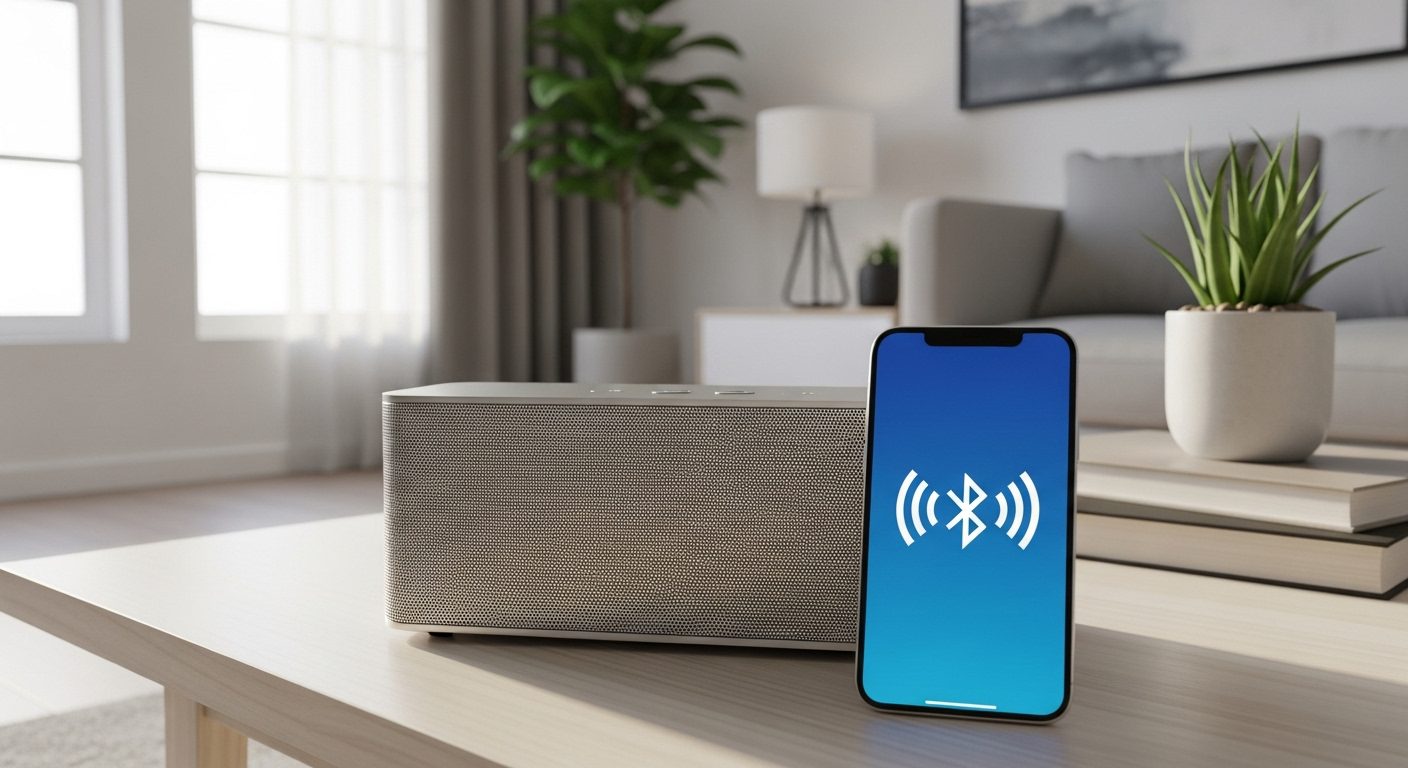
Connecting a Bluetooth speaker should be simple, but I’ve seen countless people struggle with pairing issues, connection drops, and mysterious error messages. After helping dozens of friends and family members set up their wireless speakers, I’ve learned that success comes down to understanding a few key principles and following the right steps for your specific device.
Whether you’re trying to connect your new speaker to an iPhone, Android phone, Windows PC, or any other device, this guide will walk you through everything you need to know. I’ll cover the basic pairing process that works 90% of the time, plus specific instructions for different platforms and solutions for when things don’t go as planned.
The good news is that Bluetooth technology has improved significantly over the years. Modern Bluetooth 5.0+ speakers connect faster, maintain more stable connections, and offer better range than ever before. Once you understand how the pairing process works, you’ll be able to connect any Bluetooth speaker to any compatible device in seconds.
Understanding Bluetooth Speaker Basics
Before we dive into the connection process, let’s quickly cover what happens when you pair a Bluetooth speaker. When you put your speaker into pairing mode, it broadcasts a signal that nearby devices can detect. Your phone or computer then establishes an encrypted connection with the speaker, allowing audio to stream wirelessly.
Most modern Bluetooth speakers use version 4.0 or higher, with the latest models featuring Bluetooth 5.0, 5.1, or 5.2. These newer versions offer improved range (up to 800 feet in ideal conditions for Bluetooth 5.0), better battery efficiency, and the ability to connect to multiple devices simultaneously. The actual range you’ll experience depends on obstacles like walls and interference from other wireless devices.
Audio quality depends on the codec your devices support. SBC (Sub-band Coding) is the universal standard that all Bluetooth devices support, but it compresses audio noticeably. Better codecs like AAC (used by Apple devices), aptX (common on Android), and LDAC (Sony’s high-resolution codec) deliver superior sound quality when both your source device and speaker support them.
Universal Steps to Connect Any Bluetooth Speaker
These basic steps work for connecting almost any Bluetooth speaker to any device. I’ve used this process hundreds of times, and it rarely fails when followed correctly.
Step 1: Prepare Your Speaker
First, ensure your Bluetooth speaker is charged or plugged in. Low battery can cause connection issues or prevent pairing entirely. Turn on the speaker using its power button – you’ll usually hear a startup sound or see LED lights activate.
Put the speaker into pairing mode. This is crucial – your speaker won’t appear in device lists unless it’s actively broadcasting its availability. Most speakers enter pairing mode automatically when first turned on, but if yours doesn’t, look for a Bluetooth button (often marked with the Bluetooth symbol) and hold it for 3-5 seconds. You’ll typically hear a voice prompt saying “pairing” or see a blinking blue LED.
Step 2: Enable Bluetooth on Your Device
On your phone, tablet, or computer, navigate to Bluetooth settings and turn Bluetooth on if it isn’t already. Make sure your device is “discoverable” – most devices are discoverable by default when the Bluetooth settings menu is open.
Step 3: Find and Select Your Speaker
Your device will scan for available Bluetooth devices. This usually happens automatically, but you might need to tap “Scan” or “Search for devices.” Your speaker should appear in the list within 5-10 seconds. It might show up as the brand name (like “JBL Flip 5”), a model number, or sometimes just “Bluetooth Speaker.”
Tap or click on your speaker’s name to initiate pairing. Some devices might ask for a PIN or passcode – if so, try “0000” or “1234” (the most common defaults), or check your speaker’s manual.
Step 4: Confirm Connection
Once connected, you’ll hear a confirmation sound from the speaker, and it should show as “Connected” in your device’s Bluetooth menu. The LED on your speaker will typically stop blinking and remain solid blue or turn off entirely.
Test the connection by playing audio. Start with a low volume and gradually increase it. If you don’t hear anything, check that your device’s audio output is set to Bluetooth and not the internal speaker.
How to Connect Bluetooth Speaker to iPhone or iPad?
Apple devices generally offer the smoothest Bluetooth pairing experience. I’ve connected dozens of different speakers to iPhones and iPads, and the process is remarkably consistent.
Start by opening Settings on your iPhone or iPad and tapping Bluetooth. Make sure the toggle is green (on). Your device will immediately start scanning for available Bluetooth devices. Put your speaker into pairing mode as described earlier.
When your speaker appears under “Other Devices,” tap its name. The connection usually takes 2-3 seconds. Once connected, the speaker moves to the “My Devices” section and shows “Connected.” iOS remembers paired devices, so future connections happen automatically when both devices are on and in range.
For AirPlay-compatible speakers, you get additional features through Control Center. Swipe down from the top-right corner (or up from the bottom on older iPhones), press and hold the audio card, then tap the AirPlay icon to see all available speakers. This method often provides better audio quality and lower latency than standard Bluetooth.
If you’re using iOS 14 or later, you can take advantage of automatic device switching. When you start playing audio on your iPhone, it automatically routes to the last connected Bluetooth speaker if it’s available. This feature works best with speakers that support Bluetooth 5.0 or higher.
How to Connect Bluetooth Speaker to Android Devices?
Android’s Bluetooth implementation varies slightly between manufacturers, but the core process remains similar. I’ll cover the standard Android method plus common variations for Samsung, Google Pixel, and OnePlus devices.
Open Settings and look for “Connected devices,” “Connections,” or “Bluetooth” – the exact name depends on your Android version and manufacturer. Tap “Pair new device” or “Add device.” Your phone will scan for available Bluetooth devices.
Put your speaker into pairing mode and wait for it to appear in the list. The scanning process might take longer on Android than iOS – sometimes up to 30 seconds. Tap your speaker’s name when it appears. Android might show a pairing request notification – tap “Pair” or “OK” to confirm.
Samsung devices offer additional features through SmartThings. If your speaker supports it, you can control volume, check battery level, and adjust settings directly from the SmartThings app. Google Pixel phones running Android 12 or later include Fast Pair, which shows a pop-up notification when compatible speakers are nearby and in pairing mode.
For better audio quality on Android, check if your device supports aptX or LDAC codecs. Go to Settings > About phone and tap “Build number” seven times to enable Developer options. Then navigate to Developer options > Bluetooth audio codec to see and select available codecs. LDAC offers the best quality but uses more battery, while aptX provides a good balance.
How to Connect Bluetooth Speaker to Windows PC?
Windows 10 and 11 have significantly improved Bluetooth connectivity compared to earlier versions. I regularly connect various Bluetooth speakers to Windows computers, and the process has become much more reliable.
Click the Start button and open Settings (the gear icon). Navigate to Devices > Bluetooth & other devices in Windows 10, or Bluetooth & devices in Windows 11. Toggle Bluetooth on if it isn’t already. Click “Add device” or “Add Bluetooth or other device,” then select “Bluetooth” from the list of device types.
Put your speaker into pairing mode. Windows will scan and display available devices. Click your speaker when it appears. Windows might install drivers automatically – this process can take 30 seconds to a minute. Once connected, you’ll see “Connected” under the speaker’s name, and Windows will play a confirmation sound.
To ensure audio routes correctly, right-click the speaker icon in your system tray and select “Open Sound settings.” Under “Output,” select your Bluetooth speaker from the dropdown menu. You can also access this through Settings > System > Sound.
Windows 11 introduces Swift Pair, which shows a notification when compatible Bluetooth devices are in pairing mode nearby. Click the notification to connect instantly without navigating through settings. This feature works with speakers that support Bluetooth 4.0 or higher.
For better audio quality, especially if you notice delays while watching videos, navigate to the speaker’s properties in Device Manager. Under the “Advanced” tab, you can adjust the default format and disable audio enhancements that might cause latency.
How to Connect Bluetooth Speaker to Mac?
macOS handles Bluetooth connections elegantly, and I’ve found it to be one of the most reliable platforms for wireless audio. The process is straightforward whether you’re using a MacBook, iMac, or Mac mini.
Click the Apple menu and select System Preferences (or System Settings on macOS Ventura and later). Click Bluetooth and ensure it’s turned on. Your Mac immediately starts scanning for devices. Put your speaker into pairing mode – it should appear in the device list within seconds.
Click “Connect” next to your speaker’s name. macOS might ask if you want to use the speaker for sound output – click “Use as Audio Device.” The connection typically establishes within 2-3 seconds, and you’ll see “Connected” next to the device name.
You can quickly switch between audio outputs using the Control Center (macOS Big Sur and later) or the volume icon in the menu bar while holding the Option key. This displays all available audio devices, letting you switch between your Mac’s speakers, Bluetooth speaker, or any connected headphones instantly.
For the best experience, keep your Bluetooth speaker within 30 feet of your Mac and avoid obstacles between them. macOS automatically reconnects to previously paired speakers when they’re turned on and in range, making daily use seamless.
Connecting to Smart TVs and Streaming Devices
Modern smart TVs and streaming devices like Roku, Fire TV, and Apple TV support Bluetooth speakers, though the setup process varies by brand. I’ve connected speakers to various TV brands, and while each has quirks, the basic approach is similar.
For Samsung smart TVs, navigate to Settings > Sound > Sound Output > Bluetooth Speaker List. Put your speaker in pairing mode and select it from the list. LG TVs use Settings > All Settings > Sound > Sound Out > Bluetooth. Sony Android TVs follow Settings > Remotes & Accessories > Add Accessory.
Amazon Fire TV devices offer Bluetooth support through Settings > Controllers & Bluetooth Devices > Other Bluetooth Devices. Put your speaker in pairing mode and select “Add Bluetooth Devices.” The Fire TV will search and display your speaker.
Apple TV (4th generation and later) connects through Settings > Remotes and Devices > Bluetooth. Your speaker appears under “Other Devices” when in pairing mode. Select it to connect. Apple TV remembers paired speakers and reconnects automatically.
Keep in mind that Bluetooth audio from TVs often has slight delay (latency), which can make lip-sync issues noticeable. Some TVs offer audio delay adjustment in their sound settings. If latency is problematic, consider speakers with aptX Low Latency support or use a wired connection instead.
Advanced Features and Multi-Device Scenarios
Modern Bluetooth speakers offer features beyond basic pairing that can significantly enhance your experience. Understanding these capabilities helps you get the most from your speaker.
Multipoint Connectivity
Some speakers support multipoint connection, allowing simultaneous pairing with two devices. I use this feature daily with my work laptop and phone. The speaker automatically switches to whichever device starts playing audio. To set this up, pair the first device normally, then put the speaker back into pairing mode while maintaining the first connection. Pair the second device, and both remain connected.
Stereo Pairing and Party Mode
Many brands offer stereo pairing (two speakers for left/right channels) or party mode (multiple speakers playing in sync). JBL calls this “PartyBoost,” Sony uses “Party Connect,” and Ultimate Ears offers “PartyUp.” The setup usually involves connecting one speaker to your device, then using the manufacturer’s app or button combinations to link additional speakers.
For stereo pairing, position speakers 6-10 feet apart for optimal soundstage. The app typically lets you designate which speaker handles left or right channels. Party mode works best when all speakers are the same model or at least from the same brand’s compatible lineup.
Voice Assistant Integration
Speakers with built-in Alexa, Google Assistant, or Siri support offer hands-free control. After initial Bluetooth pairing, you’ll need to complete setup through the manufacturer’s app. This usually involves signing into your Amazon, Google, or Apple account and granting necessary permissions.
Once configured, you can use voice commands to control playback, adjust volume, and even control smart home devices. The speaker needs Wi-Fi for voice assistant features, though basic Bluetooth playback works without internet.
Troubleshooting Common Connection Problems
Even with modern Bluetooth’s reliability improvements, connection issues still occur. I’ve troubleshot hundreds of Bluetooth problems, and these solutions resolve most issues.
Speaker Not Appearing in Bluetooth List
If your speaker doesn’t show up when scanning, first confirm it’s in pairing mode – the LED should be blinking, or you should hear a pairing announcement. Try turning the speaker off and on again, then immediately put it into pairing mode. Move the speaker closer to your device – within 3 feet for initial pairing.
Check if the speaker is already connected to another device. Bluetooth speakers can only actively connect to one device at a time (unless they support multipoint). Disconnect from other devices or turn off their Bluetooth. Reset the speaker’s Bluetooth memory by holding the power and Bluetooth buttons simultaneously for 10 seconds (exact method varies by model).
Connection Fails or Immediately Disconnects
Delete the speaker from your device’s Bluetooth list and re-pair from scratch. On iOS, tap the “i” next to the device and select “Forget This Device.” On Android, tap the gear icon and select “Unpair.” On Windows, click “Remove device.”
Restart both your device and speaker. This clears temporary glitches that prevent proper connection. Check for interference from other Bluetooth devices, Wi-Fi routers, or microwaves. Try connecting in a different location to rule out environmental interference.
Update your device’s operating system and the speaker’s firmware (through the manufacturer’s app if available). Outdated software often causes compatibility issues with newer Bluetooth protocols.
Poor Audio Quality or Intermittent Cutting Out
Audio dropouts usually indicate range or interference issues. Keep your device within 30 feet of the speaker with minimal obstacles. Thick walls, metal objects, and bodies of water significantly reduce Bluetooth range. Other wireless devices on the 2.4GHz frequency can interfere – try turning off nearby Bluetooth devices or moving away from Wi-Fi routers.
Check your audio source quality. Streaming services might reduce quality on cellular connections. Download music for offline playback to eliminate network-related issues. On Android, verify you’re using the best available codec in Developer options. On Windows, check the speaker’s properties in Sound settings and ensure the quality is set to the highest available option.
Battery level affects performance – both in your speaker and source device. Low battery can cause stuttering or disconnections. Keep both devices charged above 20% for optimal performance.
Audio Delay (Latency) Issues
Bluetooth inherently has some delay, typically 150-300 milliseconds with standard SBC codec. This is usually unnoticeable for music but problematic for videos or games. Use aptX Low Latency (40ms delay) or aptX Adaptive if both devices support it.
Many video apps automatically adjust for Bluetooth delay, but you can manually sync audio in VLC media player or similar apps. For gaming, use wired connections or gaming-specific low-latency wireless solutions rather than standard Bluetooth.
Security and Privacy Considerations
While Bluetooth security has improved significantly, understanding potential risks helps you use wireless speakers safely. I always recommend these precautions, especially when using speakers in public spaces.
Keep your speaker’s firmware updated through the manufacturer’s app. Updates often include security patches for newly discovered vulnerabilities. Avoid pairing in crowded public spaces where others might attempt to connect to your speaker. If your speaker supports it, enable authentication requirements or use a custom PIN instead of the default.
When not using your speaker, turn it off or disable Bluetooth to prevent unauthorized access attempts. Some speakers remain in a discoverable state even when connected, potentially allowing others to attempt pairing. Check your speaker’s settings to disable this feature if available.
Be cautious with speakers that include microphones for voice assistants or speakerphone functionality. These could theoretically be exploited for eavesdropping if compromised. Review the manufacturer’s privacy policy and disable microphone features if you don’t need them.
Optimizing Battery Life and Performance
Both your speaker and source device use battery for Bluetooth connections. Through testing various usage patterns, I’ve identified ways to maximize battery life without sacrificing convenience.
Keep your devices close together – Bluetooth uses more power to maintain connections over longer distances. The sweet spot is 10-15 feet for most situations. Walls and obstacles force higher transmission power, draining batteries faster.
Lower volume levels use less power in the speaker, though the difference isn’t dramatic until you approach maximum volume. Playing at 70% volume can extend battery life by 20-30% compared to full volume. The source device’s battery drain remains relatively constant regardless of volume.
Disable extra features you’re not using. LED light shows, voice assistants, and app connectivity all consume power. Many speakers offer power-saving modes that disable non-essential features while maintaining audio playback.
Temperature affects battery performance significantly. Lithium batteries in Bluetooth speakers perform best between 60-80°F (15-27°C). Cold weather can temporarily reduce battery capacity by up to 50%, while extreme heat can cause permanent damage.
Choosing the Right Bluetooth Codec
Understanding Bluetooth codecs helps you optimize audio quality based on your devices and preferences. While your devices automatically negotiate the best mutual codec, knowing what’s happening behind the scenes lets you make informed decisions.
SBC (Sub-band Coding) is the mandatory codec all Bluetooth audio devices support. It provides acceptable quality for casual listening but compresses audio noticeably, especially at higher volumes. Maximum bitrate is 328 kbps, though many devices use lower rates to save battery.
AAC (Advanced Audio Coding) is Apple’s preferred codec, offering better quality than SBC at similar bitrates. iPhones and iPads use AAC efficiently, but Android implementation varies by manufacturer. Some Android devices perform poorly with AAC, making SBC a better choice.
aptX and aptX HD (Qualcomm) provide CD-quality and hi-res audio respectively. Standard aptX operates at 352 kbps, while aptX HD reaches 576 kbps. Many Android phones and Windows PCs support these codecs. aptX Adaptive dynamically adjusts quality based on connection stability.
LDAC (Sony) offers the highest quality at up to 990 kbps, supporting hi-res audio certification. It’s available on Sony devices and many Android phones running Android 8.0 or later. LDAC has three quality modes – connection priority (330 kbps), normal (660 kbps), and quality priority (990 kbps).
Frequently Asked Questions
Why won’t my Bluetooth speaker connect even though it worked before?
This usually happens when the speaker is trying to connect to a different previously paired device. Turn off Bluetooth on all other devices the speaker has paired with, or reset the speaker’s pairing memory. Also try “forgetting” the speaker on your device and re-pairing from scratch.
Can I connect multiple phones to one Bluetooth speaker?
Most speakers can remember 5-8 paired devices but only actively connect to one at a time. Some premium speakers support multipoint connectivity, allowing two simultaneous connections. Check your speaker’s specifications or manual for this feature.
How far away can I be from my Bluetooth speaker?
Bluetooth 5.0 speakers can theoretically reach 800 feet in perfect conditions, but real-world range is typically 30-100 feet. Walls, interference, and device quality all affect range. Older Bluetooth 4.2 speakers usually work reliably up to 30 feet.
Why is there a delay between video and audio when using Bluetooth speakers?
Bluetooth audio processing creates inherent latency, typically 150-300ms with standard codecs. Use aptX Low Latency (40ms) if supported, or look for TV/video apps with Bluetooth delay compensation settings. Wired connections eliminate this issue entirely.
Do Bluetooth speakers work with any Bluetooth device?
Generally yes – Bluetooth audio uses standardized protocols (A2DP for stereo audio, HFP for calls) that ensure compatibility. However, some features like voice assistants, app control, or stereo pairing might be device or brand-specific.
Can Bluetooth speakers damage my phone’s battery?
No, Bluetooth speakers don’t damage phone batteries. Bluetooth does use battery power, but modern Bluetooth 5.0 is quite efficient. Playing audio through Bluetooth typically uses less battery than playing through your phone’s built-in speaker at high volumes.
Is it safe to leave my Bluetooth speaker connected all the time?
Yes, it’s safe to leave devices paired. Your speaker only actively connects when both devices are on and in range. Keeping devices paired saves time and doesn’t impact battery life when not actively connected.
Why does my Bluetooth speaker sound worse than wired speakers?
Bluetooth compresses audio for wireless transmission, which can reduce quality. The degree depends on the codec used – SBC offers basic quality while aptX HD and LDAC approach wired performance. Speaker quality and size also significantly impact sound regardless of connection type.
Final Thoughts
Connecting a Bluetooth speaker has become remarkably simple with modern devices, yet knowing these details helps when things don’t work as expected. I’ve covered every scenario you’re likely to encounter, from basic pairing to advanced troubleshooting.
Remember that most connection issues stem from simple causes – the speaker isn’t in pairing mode, it’s already connected elsewhere, or there’s too much distance or interference. Starting with basic troubleshooting steps solves 90% of problems.
Bluetooth technology continues improving with each version. Bluetooth 5.2 and the upcoming 5.3 bring better audio quality, lower power consumption, and more reliable connections. As both your devices and speakers update, you’ll experience fewer issues and better performance.
The key to success is patience during initial setup and understanding your specific devices’ quirks. Once properly paired, modern Bluetooth speakers provide years of reliable wireless audio with minimal hassle. Whether you’re streaming music, watching movies, or taking calls, wireless speakers offer convenience that makes the occasional troubleshooting worthwhile.